How to Customize Cluster by Plugins
How to Install a Webportal Plugin
Webportal plugin provides a way to add custom web pages to the OpenPAI webportal. It can communicate with other PAI services, like the rest-server. It could provide customized solutions to different requirements.
As an administrator, you can configure the web portal plugins in the webportal.plugins field of services-configuration.yaml (If you don't know what services-configuration.yaml is, please refer to PAI Service Management and Paictl):
webportal:
  server-port: 9286

  plugins:
  - title: Marketplace
    uri: /scripts/plugins/marketplace.bundle.js
    config:
      repo: Microsoft/pai
- The
titlefield is the title of the web portal plugin listed in the menu, it could be customized by administrators for the same plugin with different configurations. - The
urifield is the entry file of the web portal plugin, usually previded by the plugin developer. It may be an absolute URL or a root-relative URL, as the different deploy type of the web portal plugin. - The
configfield is a key-value dictionary to configure the web portal plugin, available configs are listed in web portal plugin's specific document.
After modifying the configuration, push it to the cluster and restart webportal by:
./paictl.py service stop -n webportal
./paictl.py config push -p <config-folder> -m service
./paictl.py service start -n webportal
Deploy Openpaimarketplace as webportal plugin
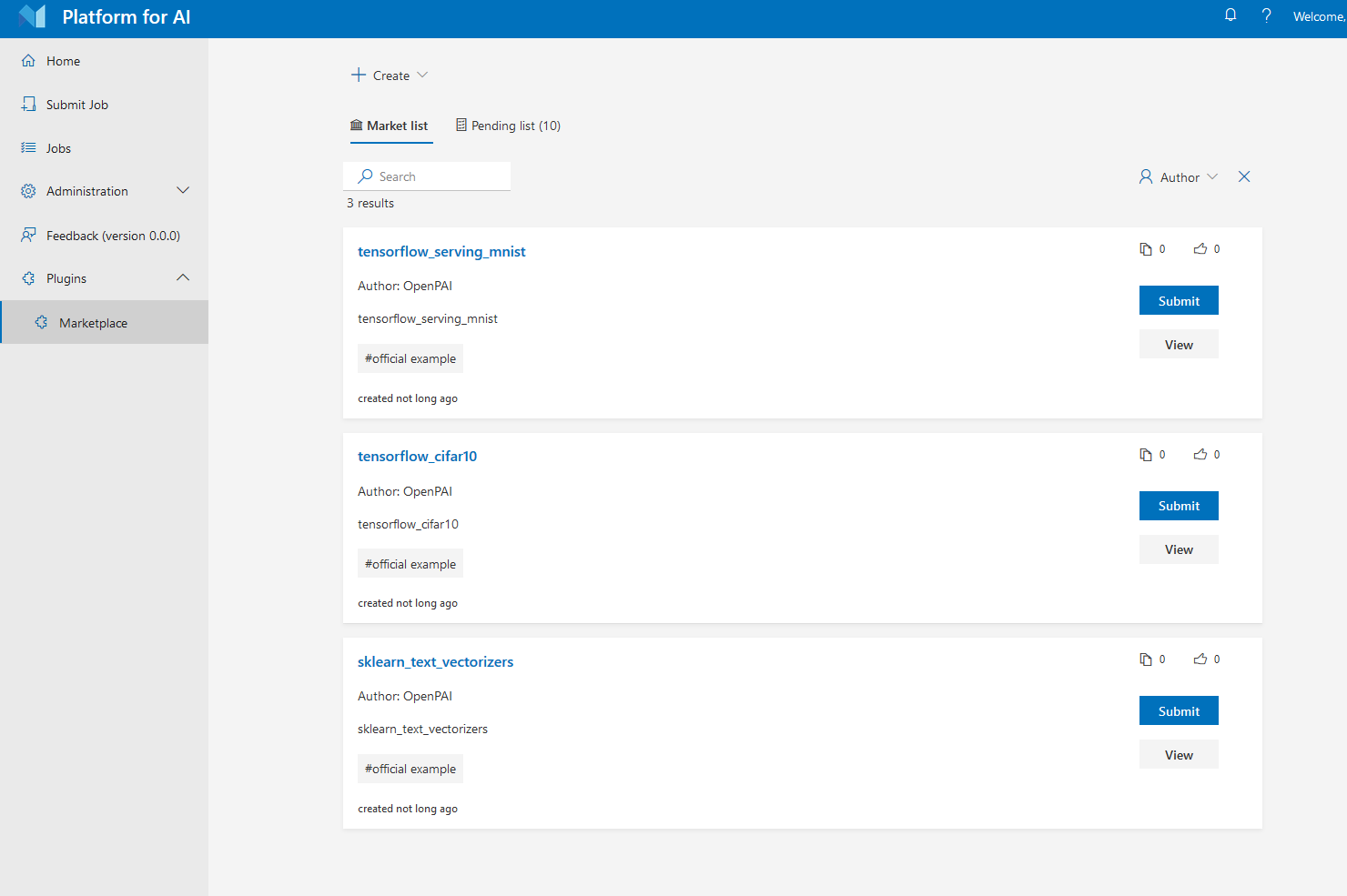
Openpaimarketplace is a place which stores examples and job templates of openpai. Users could use openpaimarketplace to share their jobs or run-and-learn others' sharing job.
To deploy openpaimarketplace, please refer to the project doc about how to deploy the marketplace service and webportal plugin.
After deployment, follow the previous part to change the webportal configuration with marketplace plugin url and restart webportal. Then you could use marketplace from the sidebar.