Basic Management Operations
Management on Webportal
The webportal provides some basic administration functions. If you log in to it as an administrator, you will find several buttons about administration on the left sidebar, as shown in the following image.
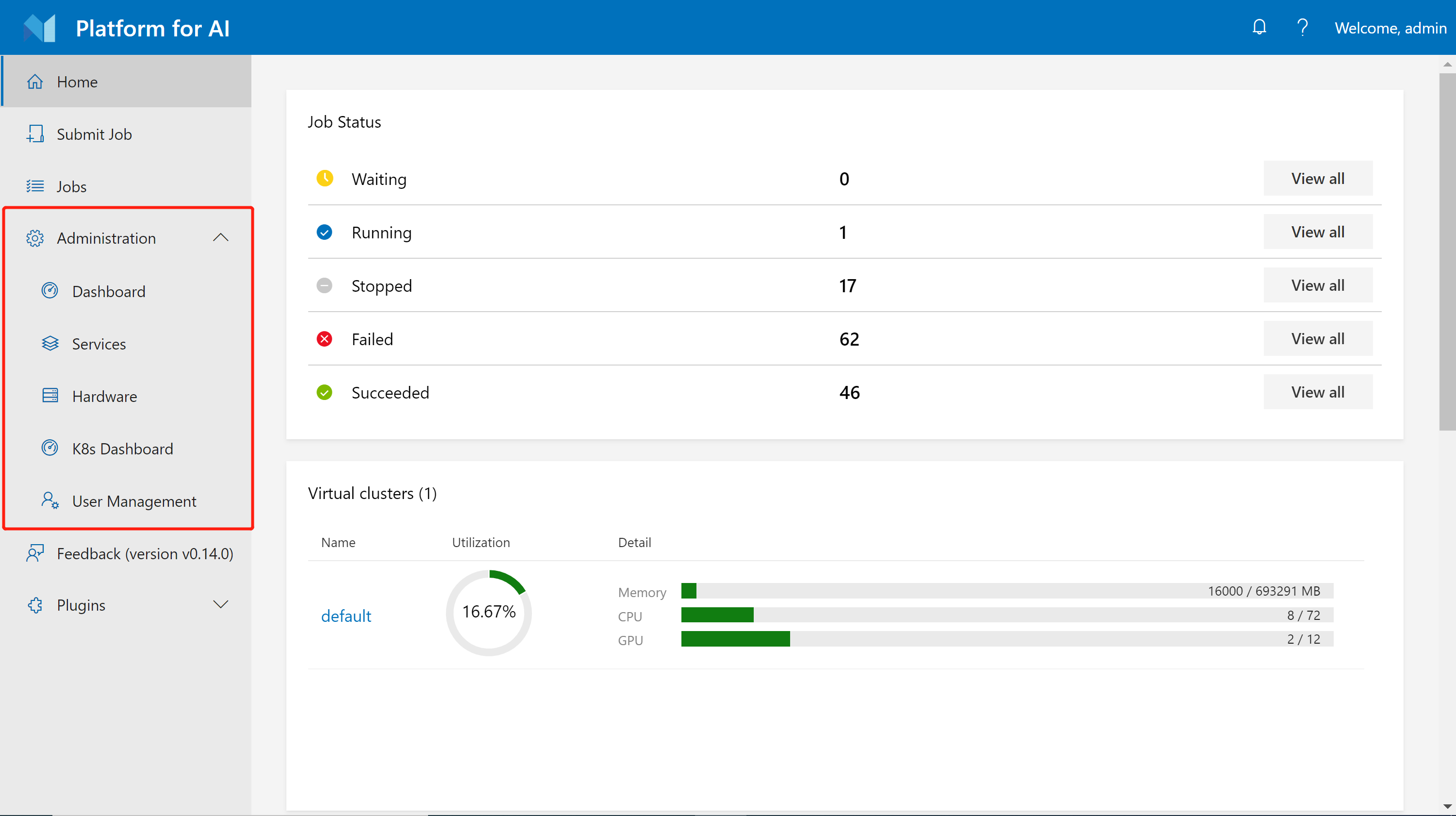
Most of these functions are easy to understand. We will go through them quickly in this section.
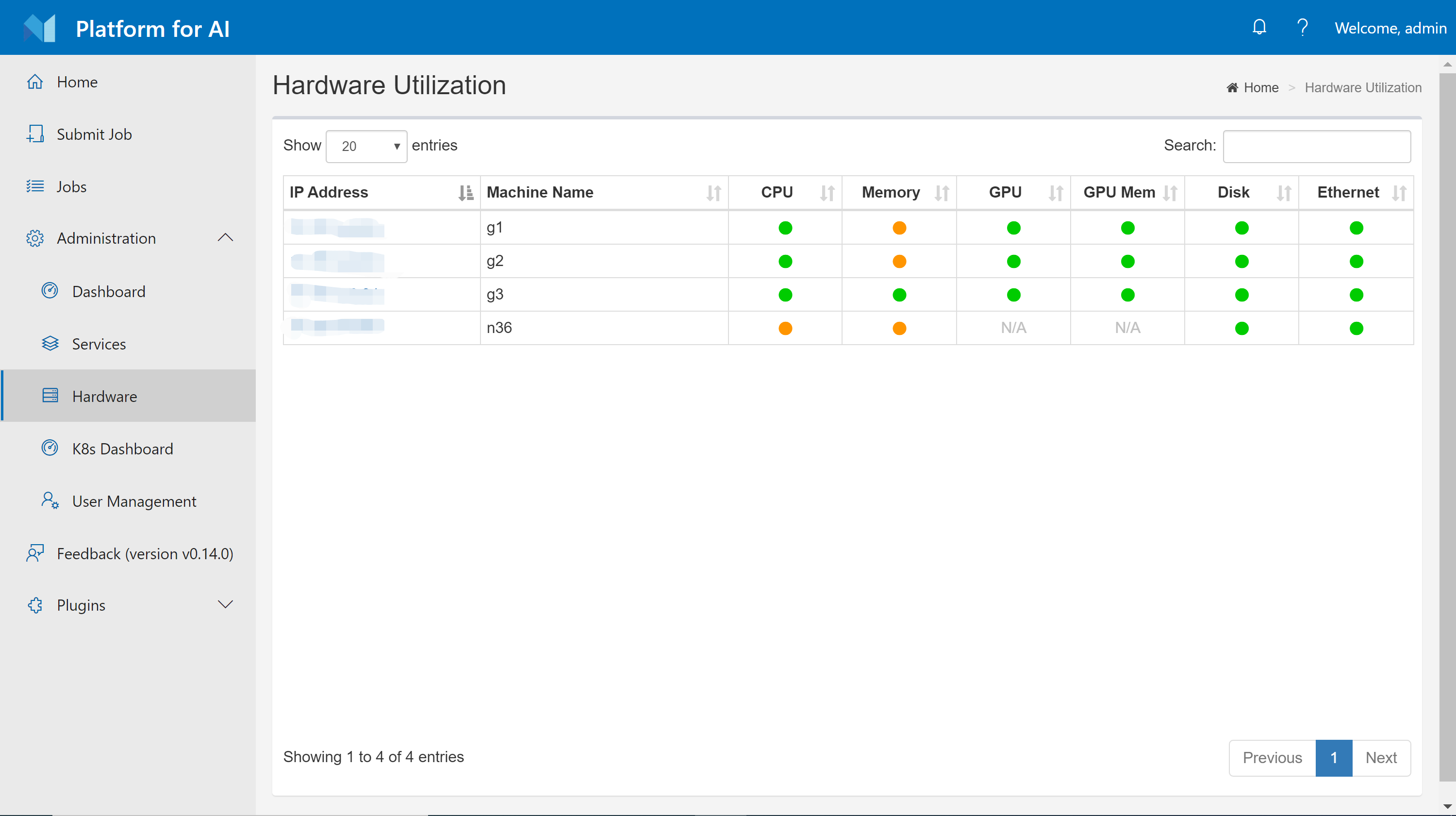
Hardware Utilization Page
The hardware page shows the CPU, GPU, memory, disk, network utilization of each node in your cluster. The utilization is shown in different color basically. If you hover your mouse on these colored circles, exact utilization percentage will be shown.
Services Page
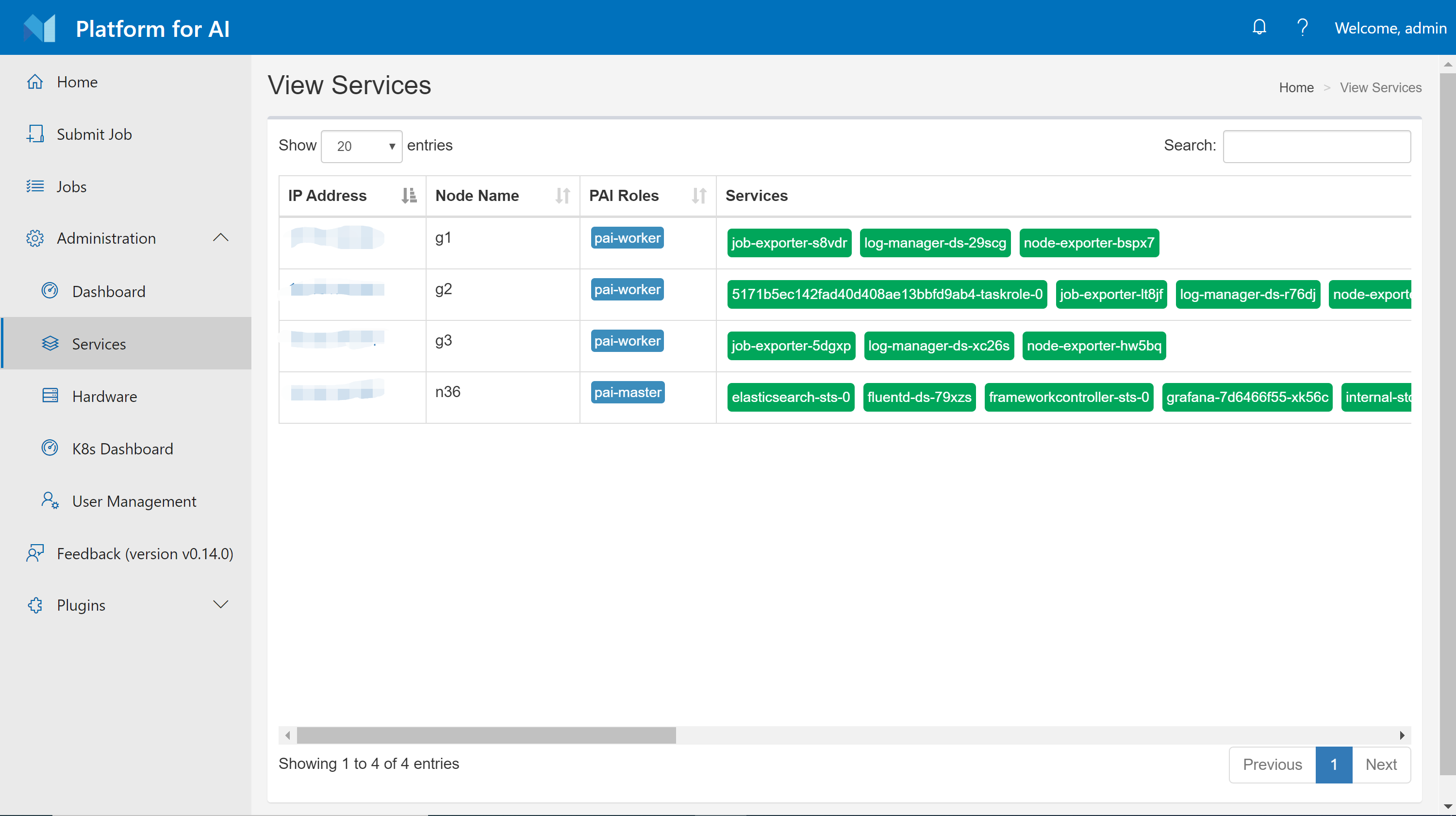
The services page shows OpenPAI services deployed in Kubernetes. These services are daemonset, deployment, or stateful sets.
User Management
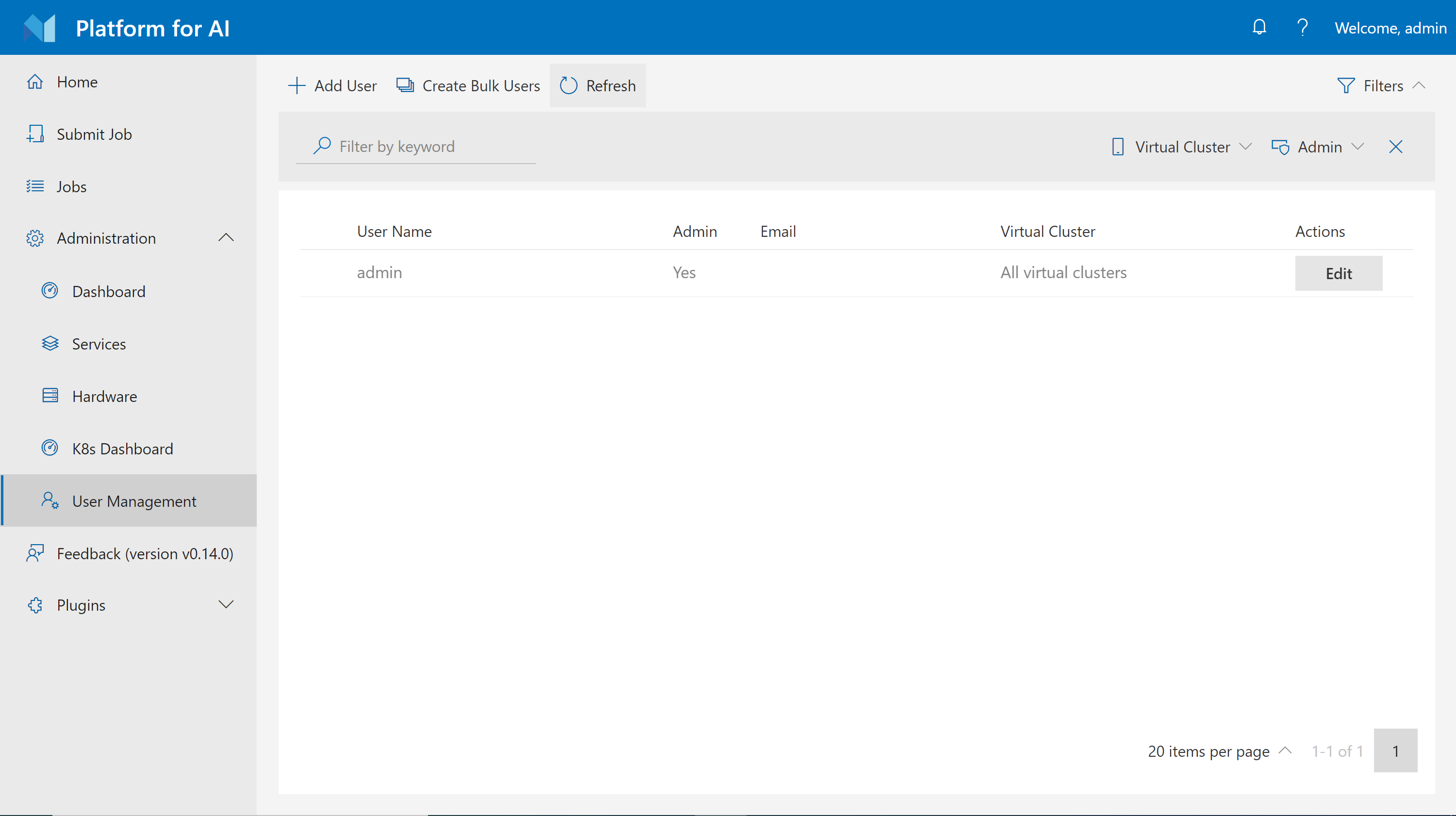
The user management page lets you create, modify, and delete users. Users have two types: non-admin users and admin users. You can choose which type to create. This page only shows up when OpenPAI is deployed in basic authentication mode, which is the default mode. If your cluster uses AAD to manage users, this page won't be available to you.
Abnormal Jobs
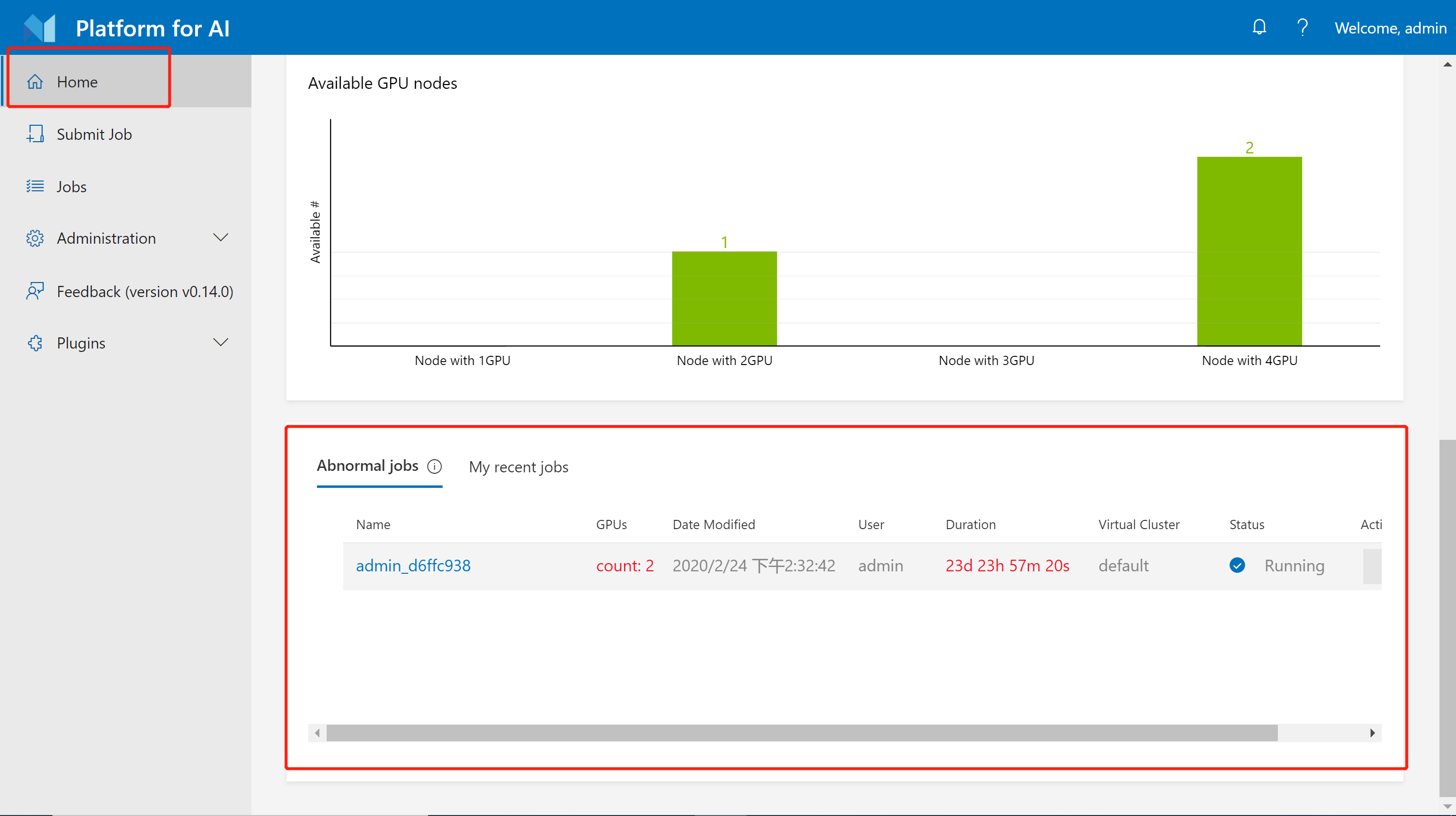
On the homepage, there is an abnormal jobs section for administrators. A job is treated as an abnormal job if it runs more than 5 days or GPU usage is lower than 10%. You can choose to stop some abnormal jobs if you desire so.
Access Kubernetes Dashboard
There is a shortcut to k8s dashboard on the webportal. However, it needs special authentication for security issues.
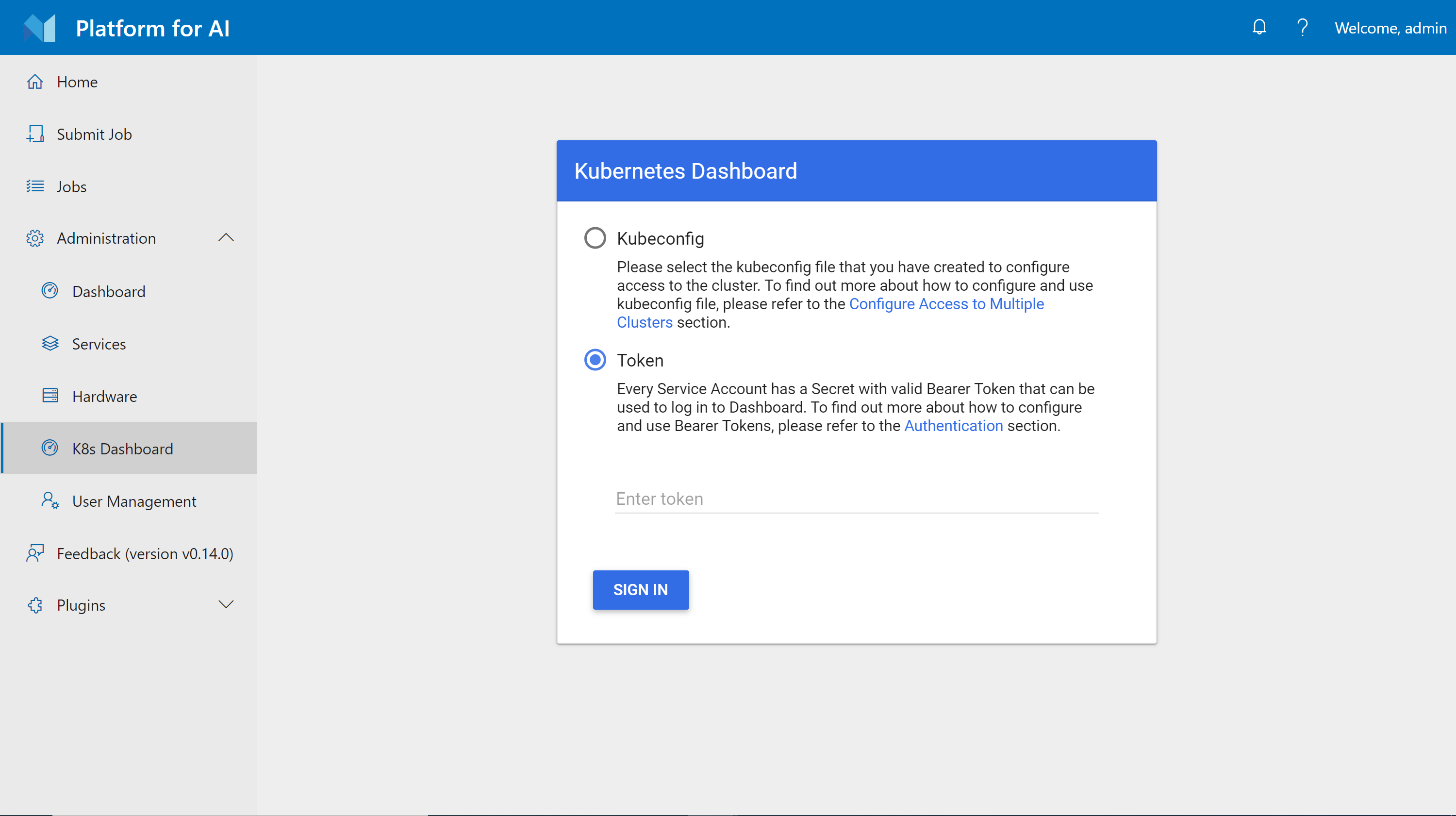
To use it, you should first set up https access (Using http://<ip> won't work) for OpenPAI. Then, on the dev box machine, follow the steps below:
Step 1. Save following yaml text as admin-user.yaml
apiVersion: v1
kind: ServiceAccount
metadata:
  name: admin-user
  namespace: kube-system
---
apiVersion: rbac.authorization.k8s.io/v1
kind: ClusterRoleBinding
metadata:
  name: admin-user
roleRef:
  apiGroup: rbac.authorization.k8s.io
  kind: ClusterRole
  name: cluster-admin
subjects:
- kind: ServiceAccount
  name: admin-user
  namespace: kube-system
Step 2. Run kubectl apply -f admin-user.yaml
Step 3. Run kubectl -n kube-system describe secret $(kubectl -n kube-system get secret | grep admin-user | awk '{print $1}'). It will print the token which can be used to login k8s-dashboard.
PAI Service Management and Paictl
Generally speaking, PAI services are daemon sets, deployments or stateful sets created by PAI system, running on Kubernetes. You can find them on the k8s dashboard and services page. For example, webportal is a PAI service which provides front-end interface, and rest-server is another one for back-end APIs. These services are all configurable. If you have followed the installation-guide, you can find two files, layout.yaml and services-configuration.yaml, in folder ~/pai-deploy/cluster-cfg on the dev box machine. These two files are the default service configuration.
paictl is a CLI tool which helps you manage cluster configuration and PAI services. To use it, we recommend you to leverage our dev box docker image to avoid environment-related problems. First, go to the dev box machine, launch the dev box docker by:
sudo docker run -itd \
        -e COLUMNS=$COLUMNS -e LINES=$LINES -e TERM=$TERM \
        -v /var/run/docker.sock:/var/run/docker.sock \
        -v ${HOME}/pai-deploy/cluster-cfg:/cluster-configuration  \
        -v ${HOME}/pai-deploy/kube:/root/.kube \
        --pid=host \
        --privileged=true \
        --net=host \
        --name=dev-box \
        openpai/dev-box:<openpai version tag>
You should replace the <openpai version tag> with your current OpenPAI version, e.g. v1.0.0. In the command, we mount ${HOME}/pai-deploy/kube to /root/.kube in the container. Thus the container has correct config file to access Kubernetes. Also, we mount ${HOME}/pai-deploy/cluster-cfg, the configuration created by installation, to /cluster-configuration in the container.
To use paictl, go into the container by:
sudo docker exec -it dev-box bash
Then, go to folder /pai, try to retrieve your cluster id:
cd /pai
./paictl.py config get-id
If the command prints your cluster id, you can confirm the paictl tool works fine.
Here are some basic usage examples of paictl:
# get cluster id
./paictl.py config get-id

# pull service config to a certain folder
# the configuration containers two files: layout.yaml and services-configuration.yaml
# if <config-folder> already has these files, they will be overrided
./paictl.py config pull -o <config-folder>

# push service config to the cluster
# only pushed config is effective
./paictl.py config push -p <config-folder> -m service

# stop all PAI services
./paictl.py service stop

# start all PAI services
./paictl.py service start

# stop several PAI services
./paictl.py service stop -n <service-name-1> <service-name-2>

# start several PAI services
./paictl.py service start -n <service-name-1> <service-name-2>
If you want to change configuration of some services, please follow the steps of service stop, config push and service start.
For example, if you want to customize webportal, you should modify the webportal section in services-configuration.yaml. Then use the following command to push the configuration and restart webportal:
./paictl.py service stop -n webportal
./paictl.py config push -p <config-folder> -m service
./paictl.py service start -n webportal
Another example is to restart the whole cluster:
# restart cluster
./paictl.py service stop
./paictl.py service start
You can use exit to leave the dev-box container, and use sudo docker exec -it dev-box bash to re-enter it if you desire so. If you don't need it any more, use sudo docker stop dev-box and sudo docker rm dev-box to delete the docker container.